
Get started.
ModbusLab is a local desktop workbench for connecting to, understanding, and testing Modbus RTU and Modbus TCP devices. Use it as a master to read and write data, or as a virtual lab when the target hardware is not available.
Start with the virtual bus
Open the app and keep the clearly labelled virtual connection. Three example Slave IDs let you explore registers, polling, traffic, and safe writes without attaching equipment.
Connect a real device when ready
Select New connection, choose Modbus RTU or Modbus TCP, enter the serial or network settings, then choose Open connection. A green port status means the transport is open; check each Slave ID separately for an online response.
Read a small, known range
In Register Explorer, select the Slave ID and memory area, enter the starting protocol offset and quantity, then press Read once. Start with a range confirmed by the device manual.
Make the values meaningful
Import or add a Device Model definition to name the register and specify its data type, scaling, unit, and word order. Compare the raw value with the decoded engineering value before using it.
Save a portable project
Use Save project to export a .modbuslab.json snapshot of the workspace. Saving is explicit; choose a file location that suits your project.
Writes are deliberate. Manual writes, replayed writes, and scenario steps that write require explicit confirmation. A timeout does not prove a write was not applied, so check the destination and device state before retrying manually.
Who it is for.
ModbusLab is useful wherever a register map, a wire protocol, and a real-world device meet.
Controls engineers
Bring up meters, PLCs, drives, gateways, sensors, and other Modbus equipment. Verify addresses and scaling before integrating the device into a wider system.
Commissioning & maintenance
Check link settings, discover responding Slave IDs, compare raw data with expected values, and capture evidence when a site issue is intermittent.
Device & firmware teams
Exercise a Modbus master against a simulated slave, investigate requests and exceptions, and replay captured conversations while the physical device is elsewhere.
QA, labs & educators
Create repeatable checks, inject communication faults, share project files, and teach addressing, data types, byte order, and protocol framing with a virtual bench.
Practical workflows.
Understand an unfamiliar register map
Read a small range, watch the raw words change, then create definitions for candidate values. Try plausible signedness, float format, byte order, and scaling against a known physical reading. Keep the raw data visible while you validate the interpretation.
Test an integration before delivery
Start the TCP slave server on a local or lab address and a port above 1024 (1502 is a common non-privileged choice). Load realistic register values and have your external Modbus TCP master connect to the simulator.
Investigate an unreliable link
Check transport state first, then look for responses from the intended Slave ID. Filter the analyzer to the affected function, register, error, or latency. Open a transaction to inspect paired bytes and its decoded frame fields.
Build a regression check from a real session
Record known-good reads, save the capture, and turn expected raw values into a Test Scenario. Run the same sequence against a simulator or a connected device and keep the PASS/FAIL report with the project.
Overview.
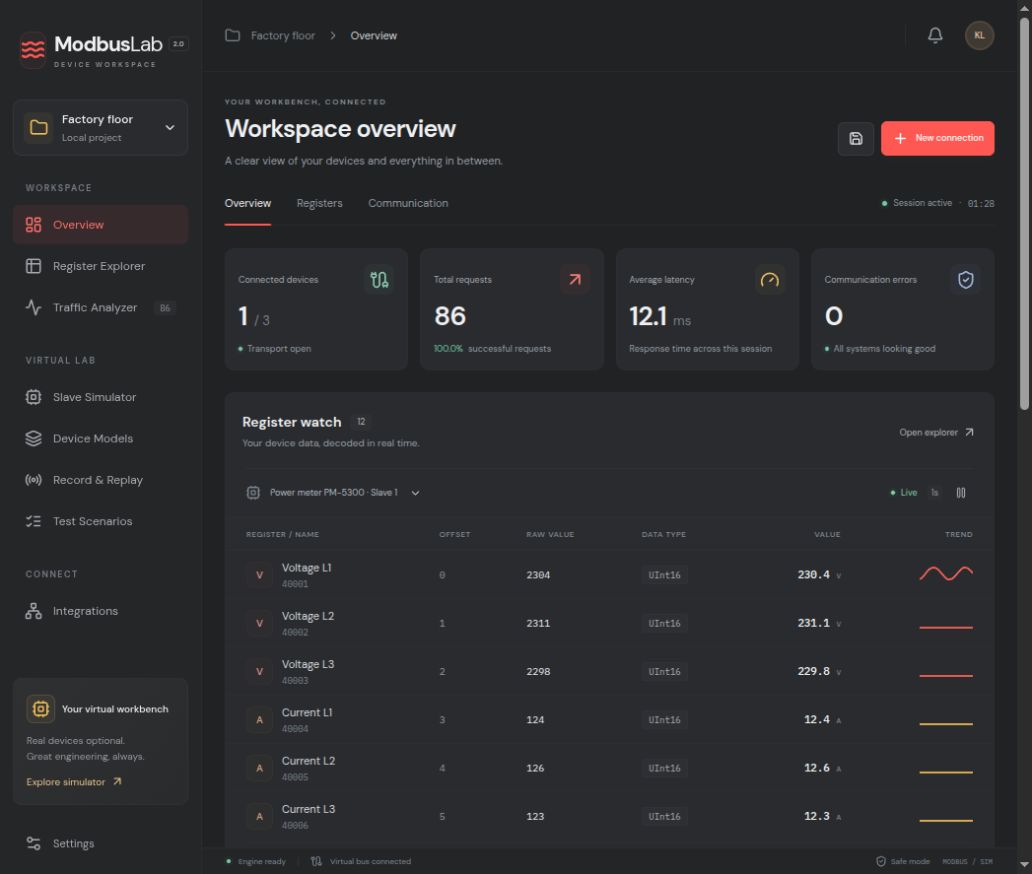
The left navigation opens each workspace screen. The project picker groups work into a named local project; the top bar shows the current screen, notifications, and project actions.
The Overview cards summarize the active connection, device responsiveness, recent traffic, and selected register history. Use the shortcut buttons to jump to the Explorer, Analyzer, or Simulator.
Connections.
Choose New connection to select a transport. Name the connection so its purpose is easy to recognize in a saved project.
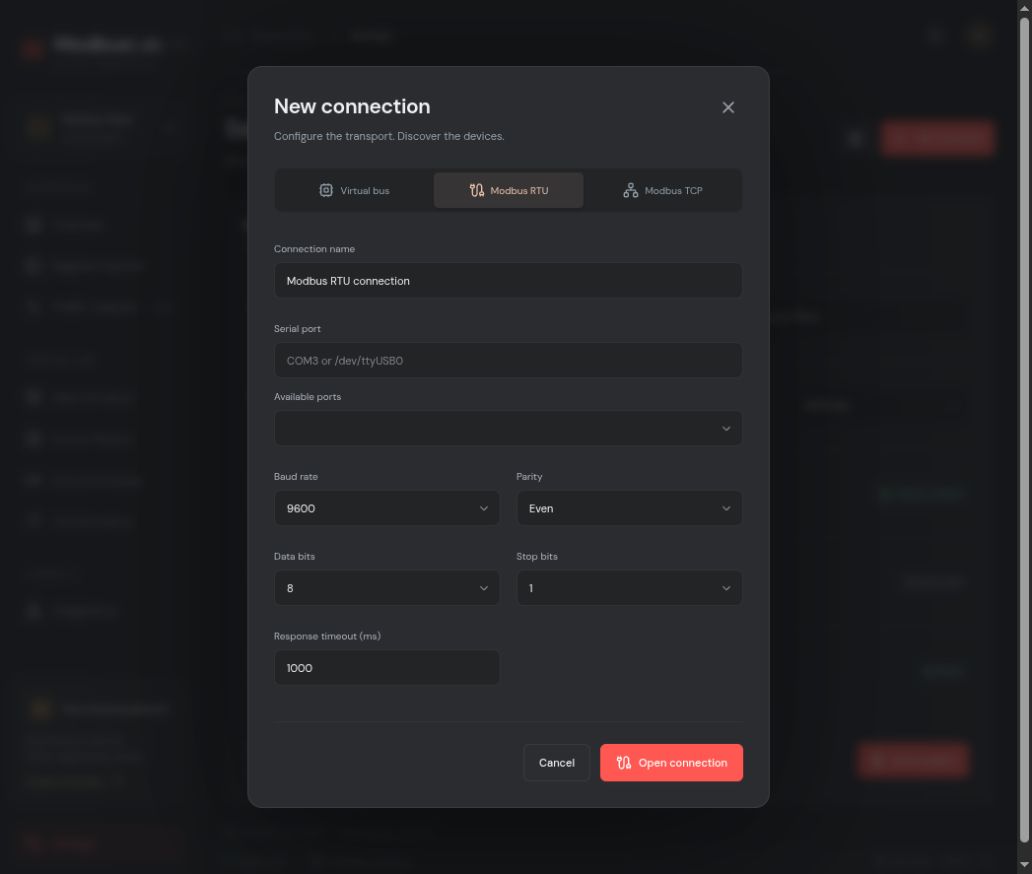
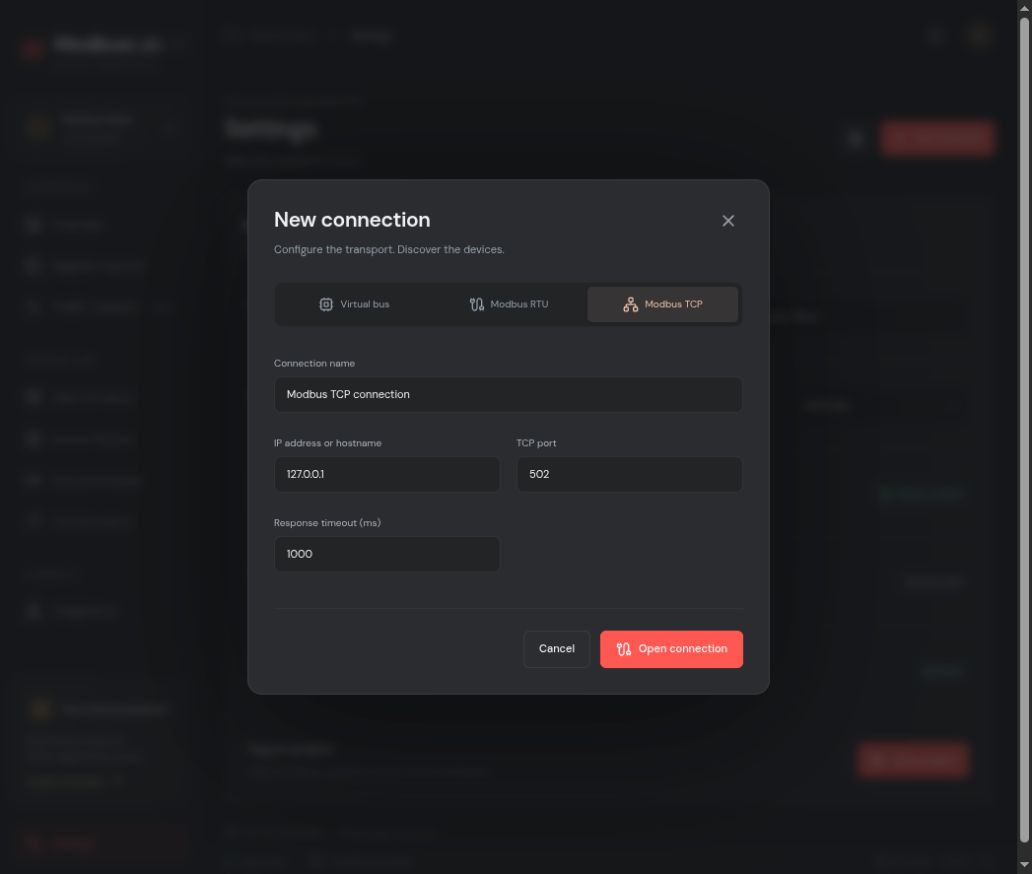
Two separate states: “COM port open” describes the RTU transport. “Slave 1 online” means that specific ID replied. A port can remain open while an individual device is offline or times out.
Register Explorer.
Read and interpret data in the four Modbus memory areas. Protocol offsets are zero-based; a conventional holding register number 40001 maps to protocol offset 0.
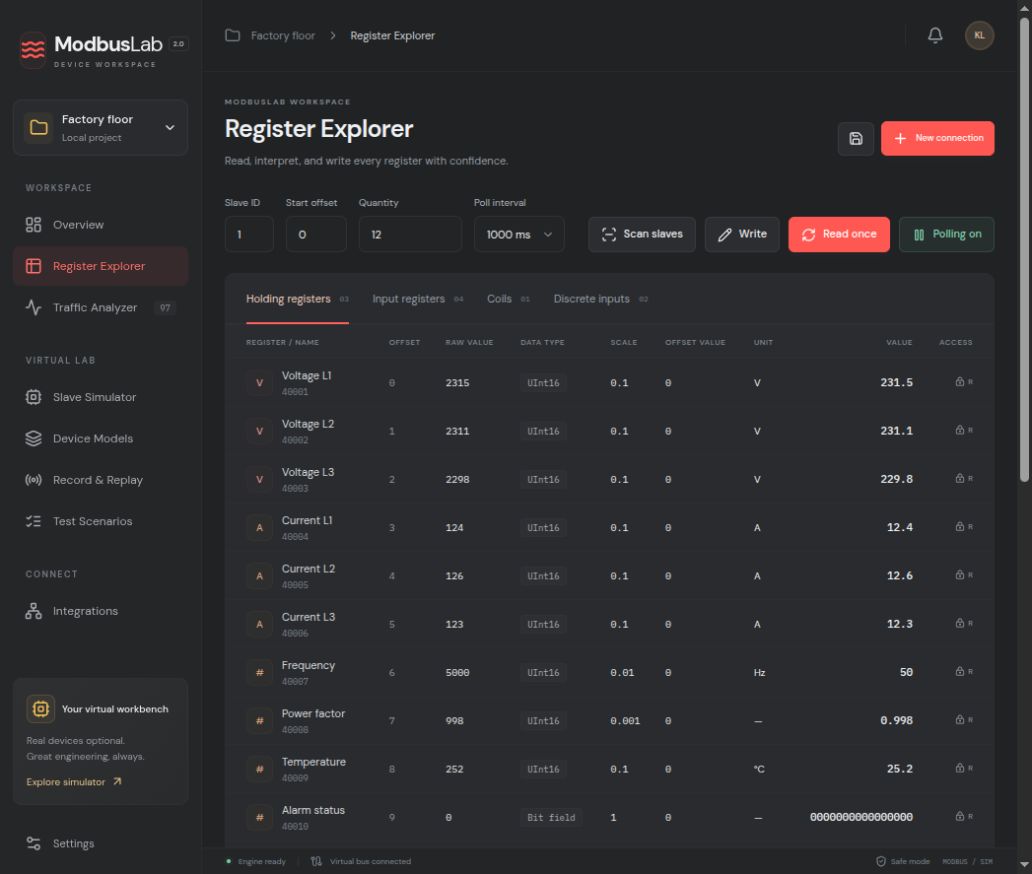
What each value column means
| Column | Meaning |
|---|---|
| Register | Human-facing reference number or name from the device model. |
| Protocol offset | Address sent on the wire, beginning at zero. Example: holding 40001 → offset 0. |
| Raw value | Unsigned 16-bit words received from the device before decoding. |
| Type / byte order / word order | How one or more words become an integer, float, text, or bit field. |
| Scale / offset / unit | Engineering conversion and display metadata for a definition. |
| Final value | Decoded raw value × scale + offset, followed by the model’s unit. |
| Access | Read/write note from the model. It documents the device map; confirmation still protects writes. |
Supported decoders include UInt16/32/64, Int16/32/64, Float32/64, Hex, Binary, ASCII, and bit fields. Multiword values depend on byte and word order. ASCII currently decodes one 16-bit word per definition; very large scaled 64-bit integers may be rejected when conversion would lose precision.
Traffic Analyzer.
The Analyzer records this application’s master transactions and pairs each transmitted request with its response. It is useful for diagnosis, but it is not a passive network sniffer.
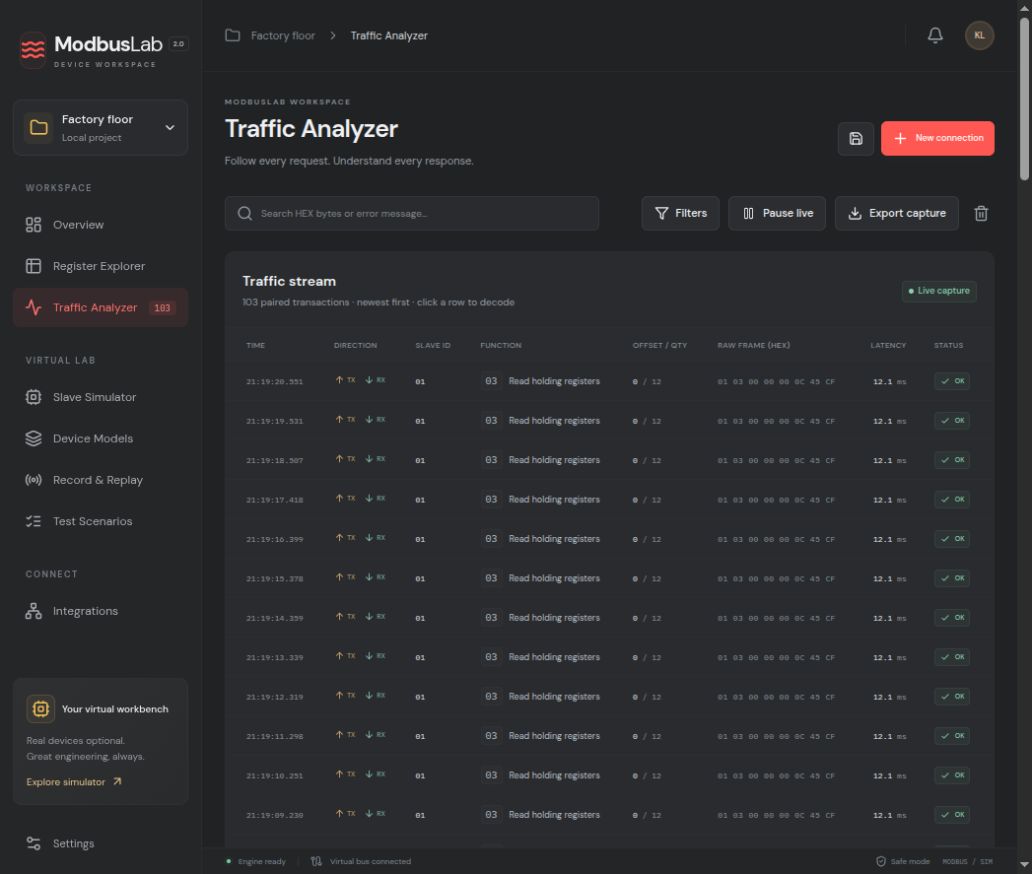
The analyzer retains up to 5,000 transactions and displays the newest 400. For TCP it decodes the MBAP transaction, protocol, length and unit fields. For RTU it shows the address, function, data and low-byte-first CRC. An exception response is a valid protocol reply that reports an error condition.
Slave Simulator.
Build a virtual device bench for a master you are developing or validating. The simulator supports multiple independent Slave IDs and a real TCP server.
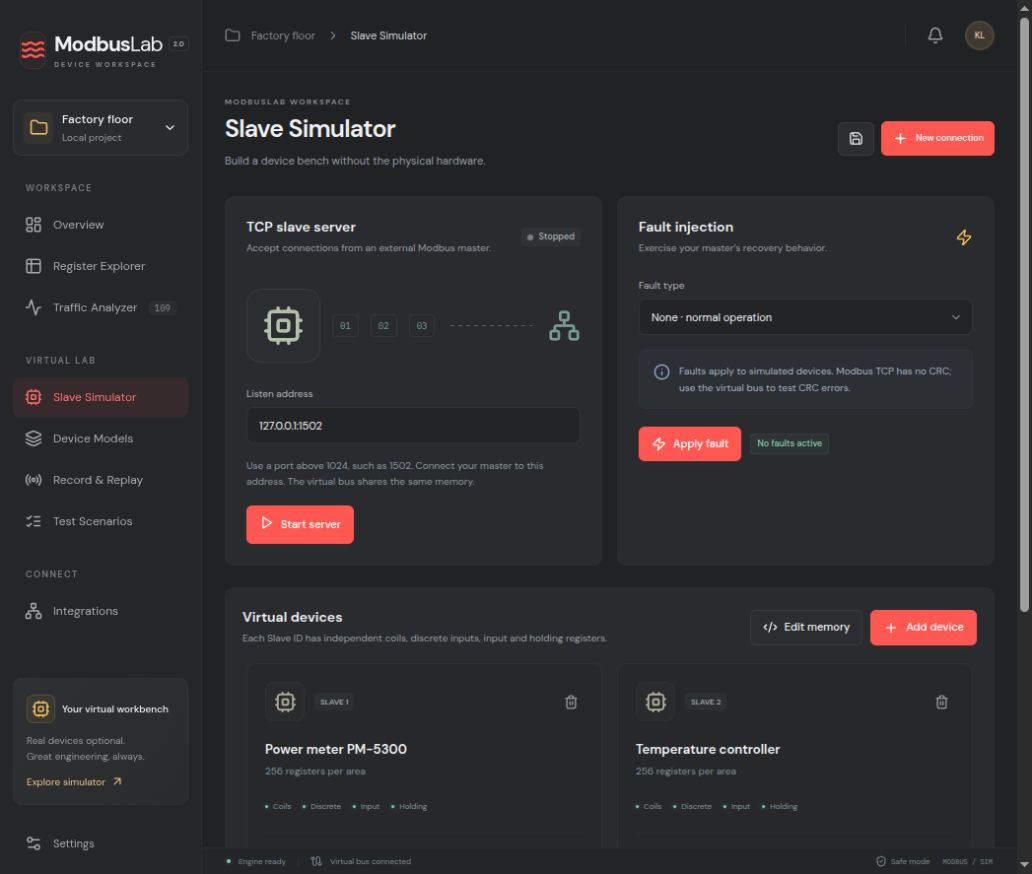
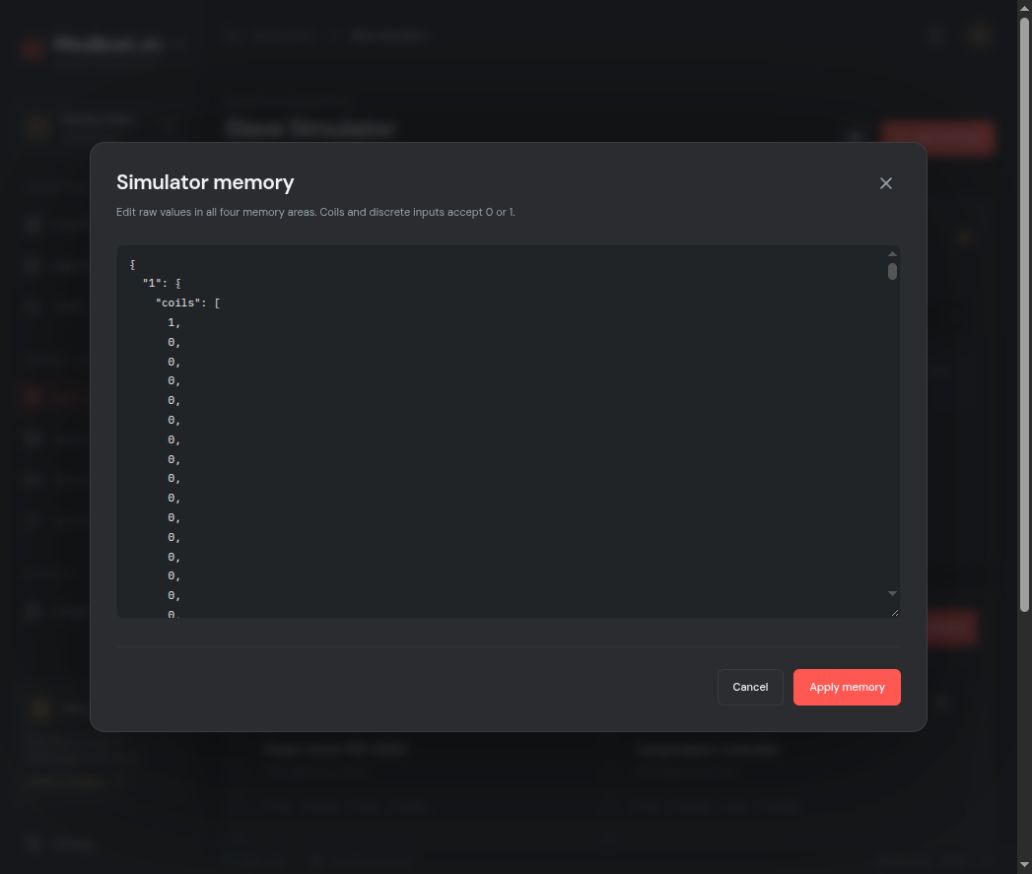
The external simulator is a Modbus TCP slave, not an RTU slave server. External TCP masters may write coils and holding registers; discrete inputs and input registers are externally read-only. TCP has no CRC, so invalid-CRC injection is available on the internal virtual RTU bus only.
Device Models.
A Device Model gives raw addresses the names, formats, units, and access notes that make a device understandable. Start from a small validated map and refine it as you learn.
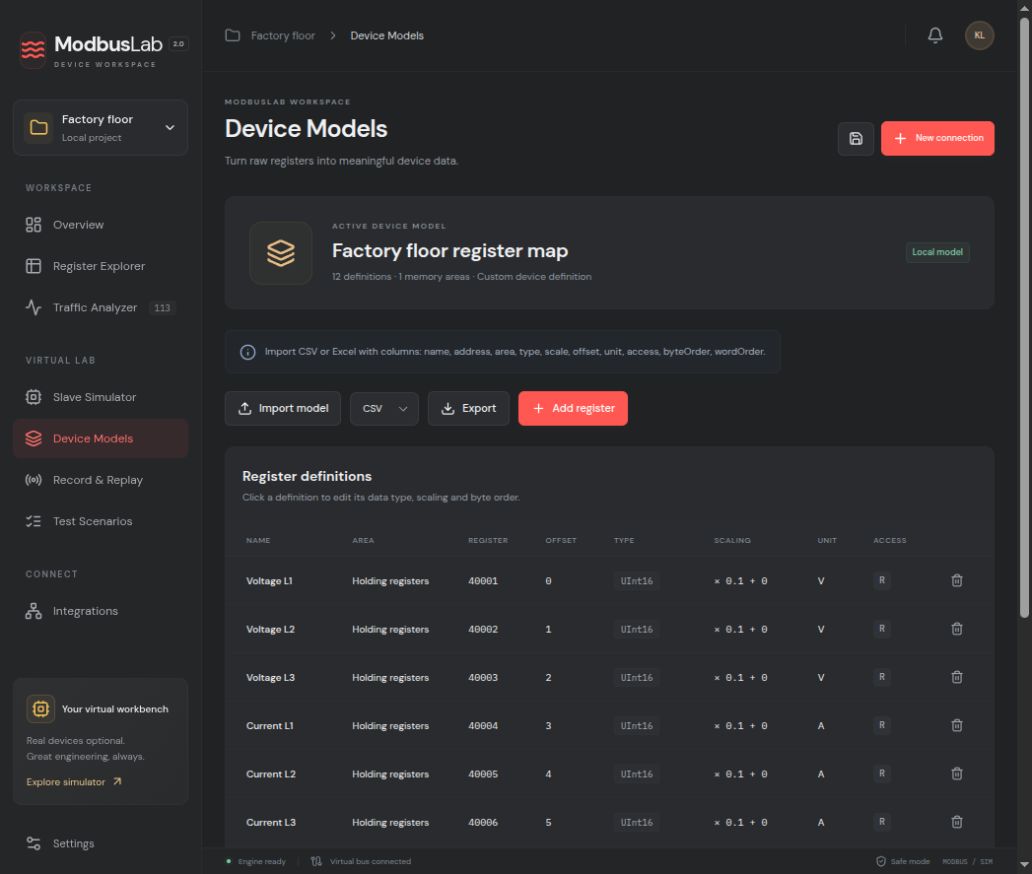
The access field describes the device model; it does not disable the manual write function. The app still requires a separate confirmation for every write.
Record & Replay.
Capture transactions with their values and original timing. Replay a known exchange or populate the simulator with observations from a real device.
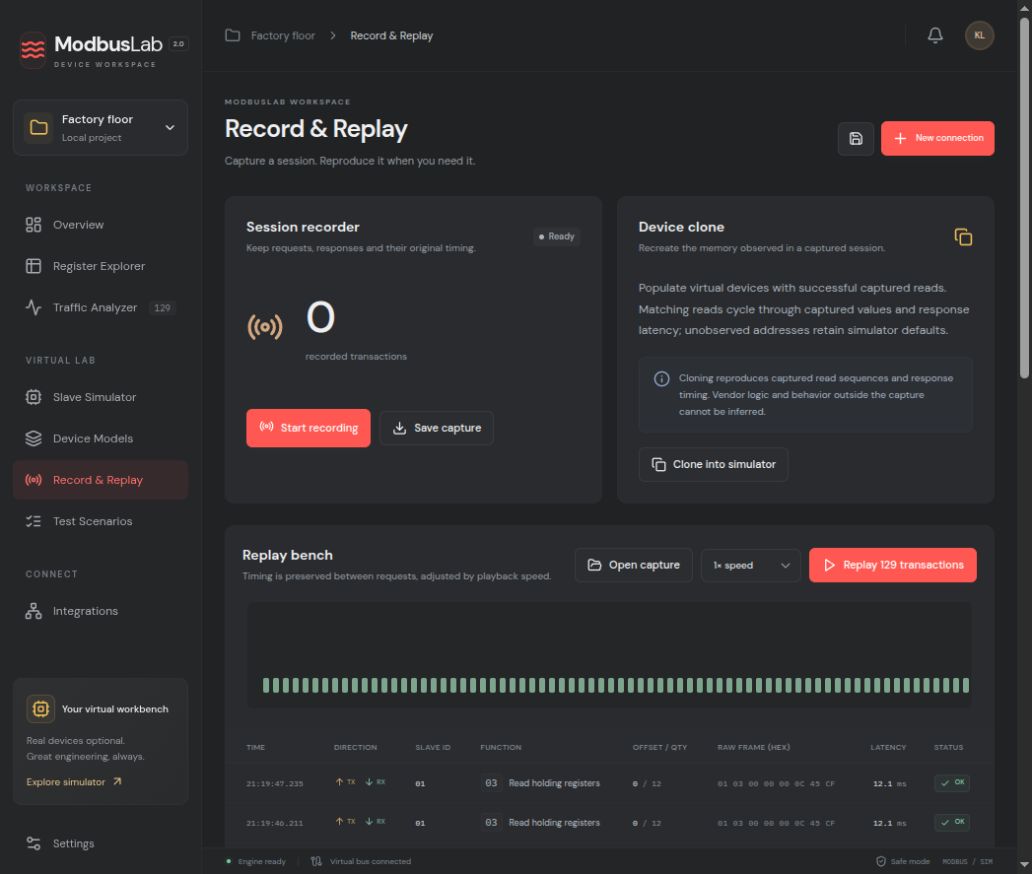
A clone reproduces only captured observations and timing; it cannot infer undocumented vendor logic or responses that were never recorded. Replay accepts up to 10,000 transactions and one hour of scheduled playback.
Test Scenarios.
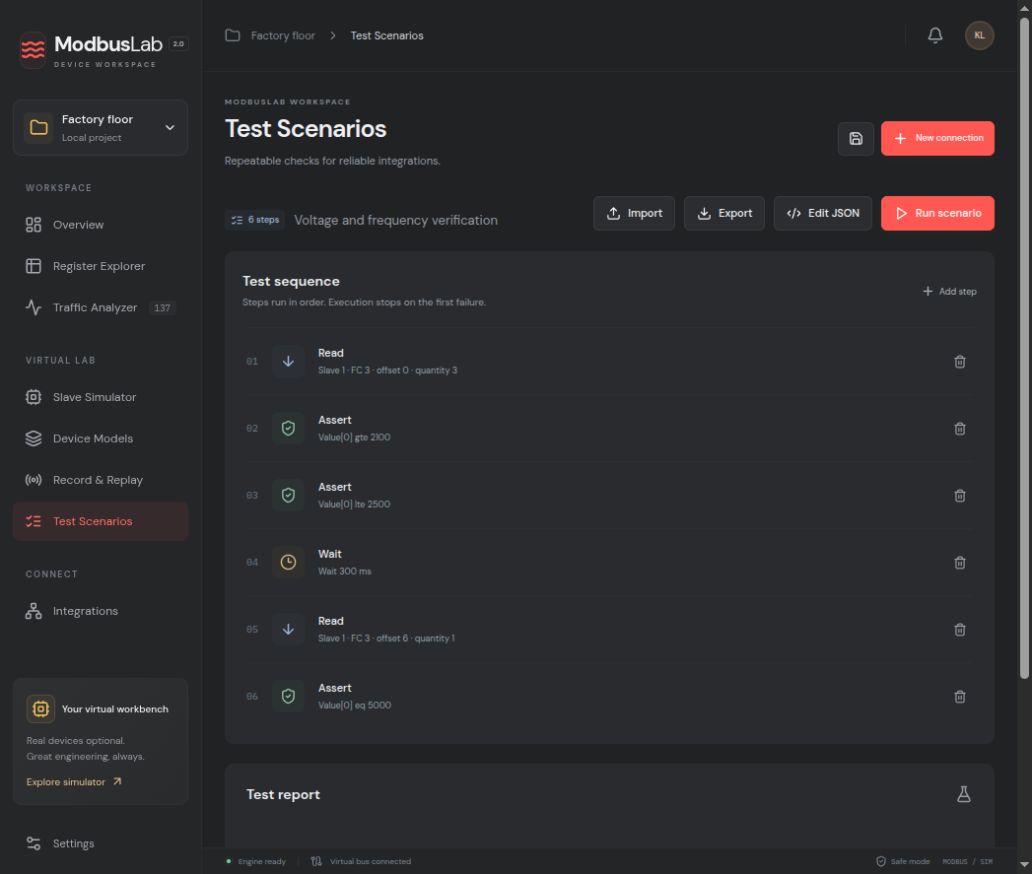
Turn a known operating sequence into a repeatable check. Steps run in order and stop at the first failure.
Integrations & settings.
Function codes.
Modbus function codes identify the operation inside a request. The Explorer selects the corresponding read or write function from its memory area and action.
| Code | Operation | Typical area | Access |
|---|---|---|---|
| 01 | Read Coils | Coils | Read |
| 02 | Read Discrete Inputs | Discrete inputs | Read |
| 03 | Read Holding Registers | Holding registers | Read |
| 04 | Read Input Registers | Input registers | Read |
| 05 | Write Single Coil | Coils | Write · confirm |
| 06 | Write Single Register | Holding registers | Write · confirm |
| 15 (0F) | Write Multiple Coils | Coils | Write · confirm |
| 16 (10) | Write Multiple Registers | Holding registers | Write · confirm |
Modbus RTU frames use CRC-16, transmitted low byte first. Modbus TCP wraps the PDU in an MBAP header and does not use an RTU CRC. For conventional reference numbering, 00001 denotes a coil, 10001 a discrete input, 30001 an input register, and 40001 a holding register; those labels are separate from the zero-based protocol offset.
Troubleshooting.
The serial port opens, but the slave is offline
Check the Slave ID, wiring polarity and common reference, termination/biasing, and matching baud rate, parity, data bits, and stop bits. A port-open status only confirms the local transport.
TCP times out or disconnects
Check the IP/hostname, port, route, firewall, and that the remote device accepts Modbus TCP. After a failed TCP exchange the stream is closed to avoid a late response contaminating the next request; open the connection again.
An exception says “Illegal data address”
Verify the memory area, zero-based offset, quantity, and whether the device exposes that address. A valid exception means the slave replied, even though the requested operation was rejected.
The raw word is correct, but the displayed value is not
Confirm signedness, register grouping, byte order, word order, scale, and offset against the vendor map. Keep the raw value in view while testing a definition.
A write timed out
The device may have applied a write even if its reply was lost. Read the target state before deciding whether to issue another write.
How do I test without hardware?
Use the virtual bus for the app's internal master, or start the TCP slave server and connect an external master to its listen address. The external RTU slave server is not included.
Licenses and offline use.
A monthly license costs USD 10 per month. A lifetime license costs USD 40 once. Each permits up to three installations. Checkout is hosted by Stripe, and the licensing service grants access only after a verified payment.
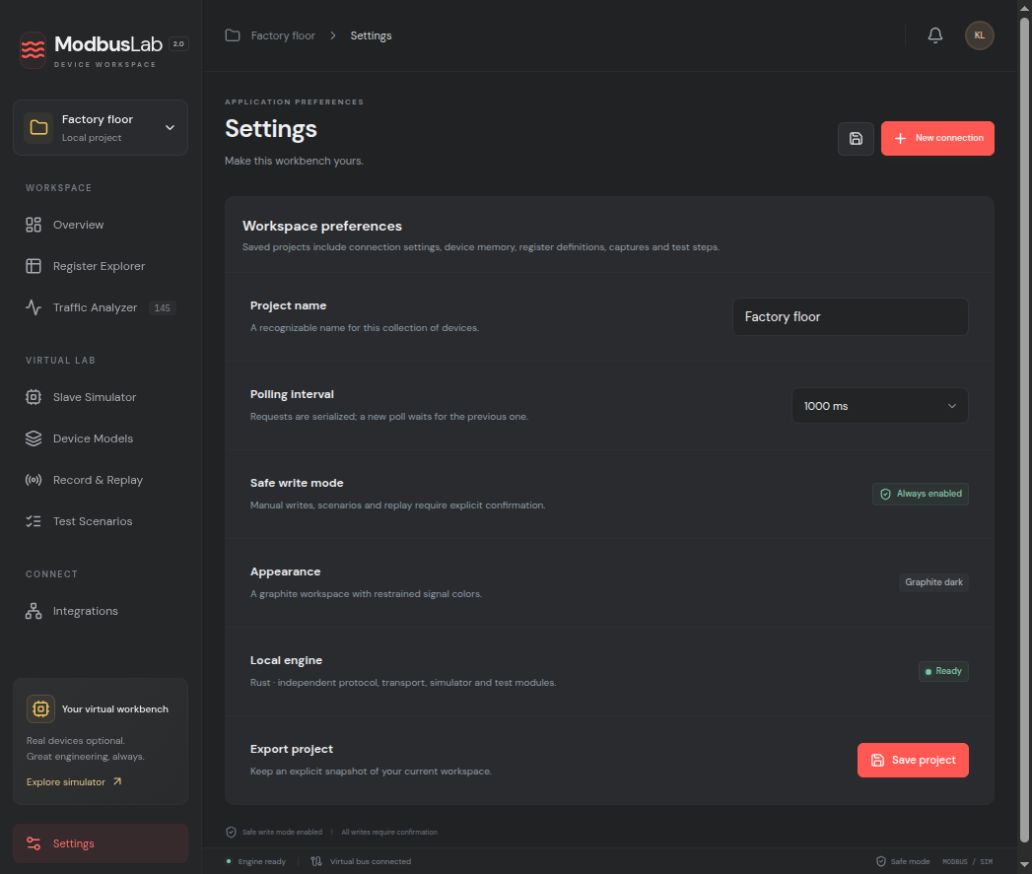
In the desktop app, open Settings and enter your license key and a recognizable device name. A random installation identity is stored in your operating system credential store. No hardware fingerprint is collected. Online activation is required.
The app refreshes its server-signed entitlement on startup, every 24 hours, and before a short paid period ends. Offline access lasts at most seven days and cannot exceed a monthly subscription's paid boundary. A server refusal removes cached access; a temporary network outage can use the remaining signed lease.
Deactivate a device in Settings, or use Manage license and devices on the website to revoke a lost installation. Its slot stays reserved until its last issued offline token expires, within seven days. This prevents one license from being cycled through unlimited offline computers. The manager displays the release time.
Save your key in a password manager. If the key and original browser receipt are both lost, support must verify ownership against the original payment. Automated email recovery is not enabled. Stripe hosts checkout and the billing portal; the licensing service never receives card details, register maps, Modbus values, projects, device addresses or communication logs.
Current capabilities.
ModbusLab is built for local, explicit work. Projects and captures are files on your computer; register maps, values and traffic logs are never sent to the licensing service. Licensed desktop builds require online activation and periodic renewal, with signed offline access for at most seven days within the paid period.
The desktop shell uses Tauri, while an independent Rust core handles protocol validation, RTU/TCP transports, simulation, typed device models, recording, scenario execution, and SNMP. Keeping the engine separate makes it reusable from future CLI, service, or alternative frontends.
- One active master connection and one active device model per workspace; the simulator supports multiple independent Slave IDs.
- The Analyzer observes ModbusLab’s own master traffic, not unrelated network clients or external masters talking to the simulator.
- External slave simulation is TCP only. Invalid CRC injection is available on the internal virtual RTU bus.
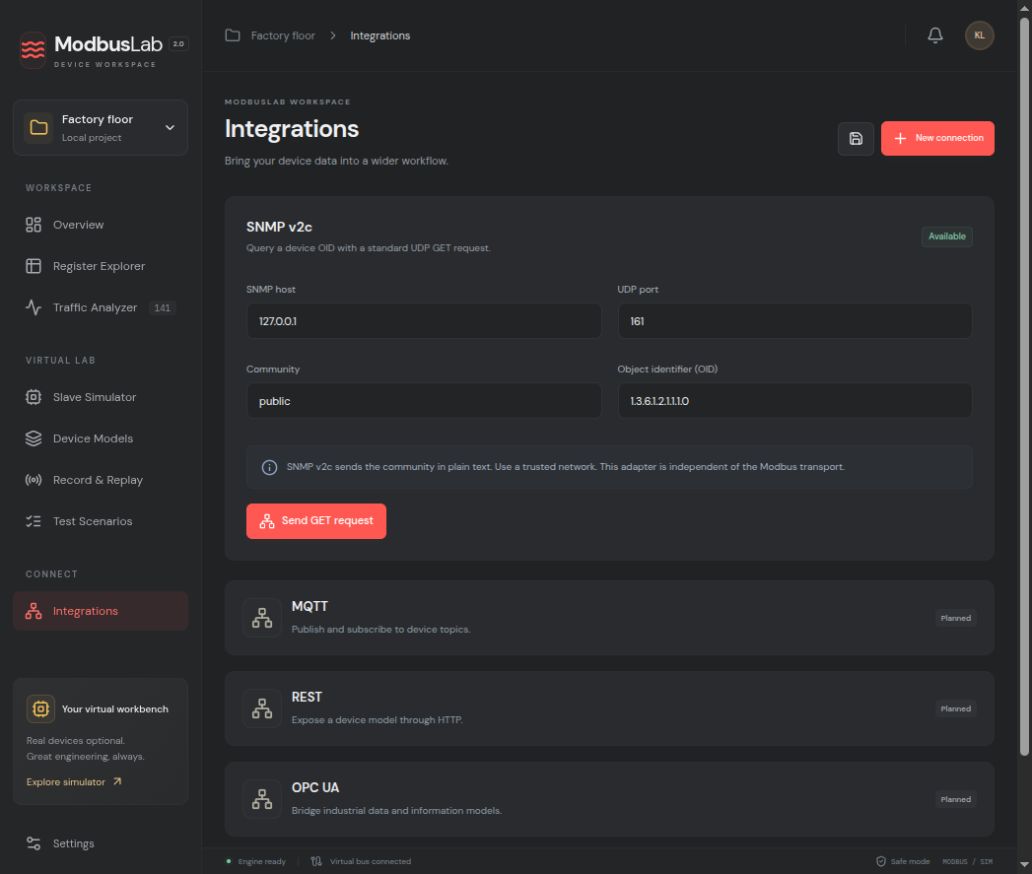
- SNMP v2c GET is implemented; SNMPv3, traps, MQTT, REST, and OPC UA are not yet available.
- Linux, Windows, and macOS unsigned debug installer builds pass in GitHub Actions. These checks do not cover signing, notarization, or release distribution.
- Physical RS-485 hardware and production devices have not been validated as part of this development preview.